




Create expense categories
In Expensify, categories represent your chart of accounts, GL accounts, expense accounts, or other financial coding used for reporting and accounting.
Workspace Admins can create categories manually, or import them automatically when connecting an accounting system such as QuickBooks, Xero, NetSuite, or Sage Intacct. Once categories are available, they can be enabled or disabled as needed. Over time, Expensify also learns how categories are applied to specific merchants and suggests them automatically.
The Categories table displays the category Name, GL Code (if assigned), and whether it’s Enabled for workspace members to use.
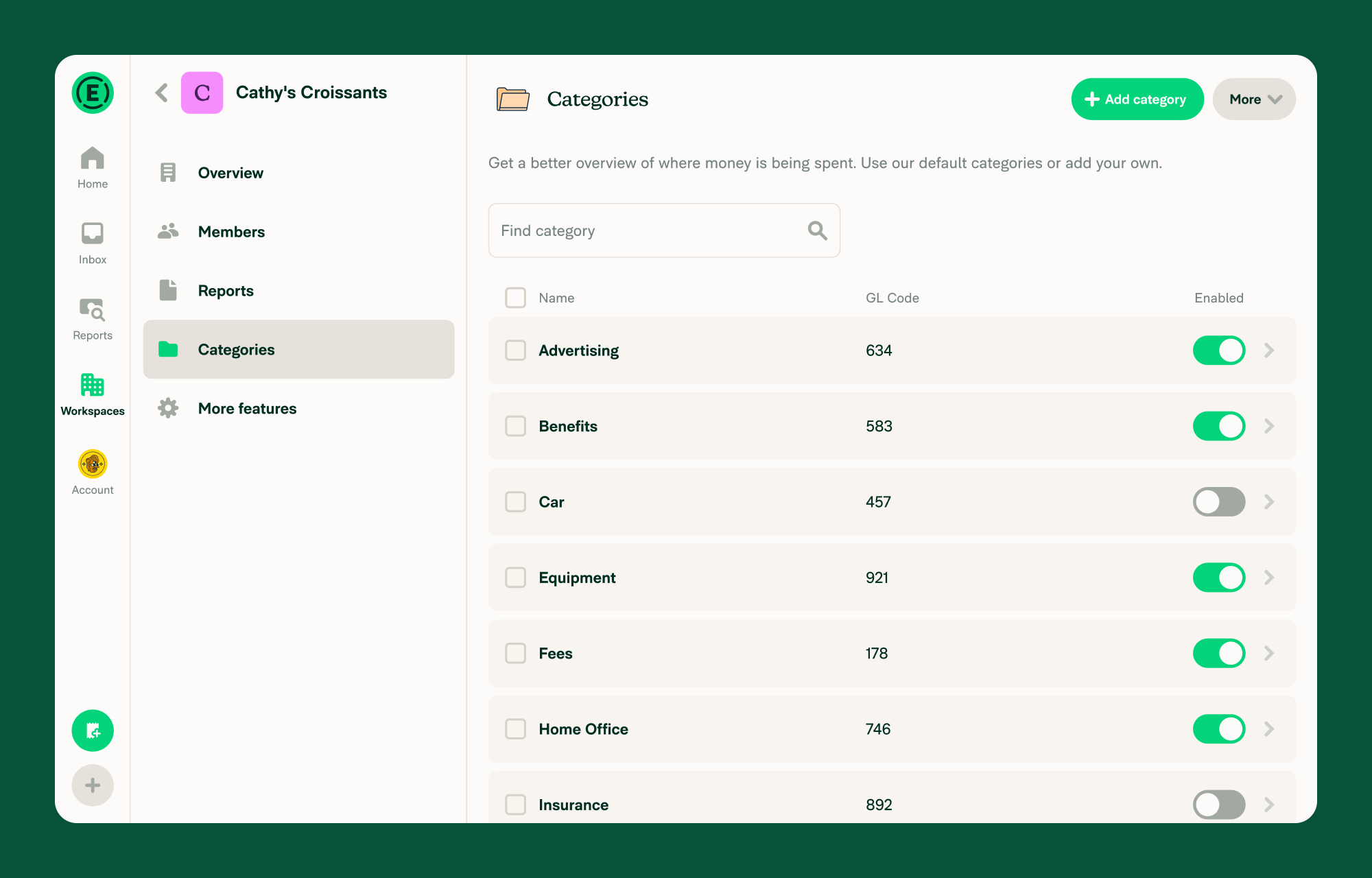
How to add or delete categories manually
- In the navigation tabs (on the left on web, and at the bottom on mobile), click Workspaces.
- Click your workspace name.
- Click Categories.
- Click Add Category in the top-right corner.
- Enter a category name and click Save.
To delete a category:
- Click the category from the list.
- Click the three-dot menu in the top-right corner.
- Select Delete category.
How to upload categories using a CSV file
- In the navigation tabs (on the left on web, and at the bottom on mobile), click Workspaces.
- Click your workspace name.
- Click Categories.
- Click the three-dot menu, then select Import Spreadsheet.
- Format your spreadsheet using the required columns.
- Download the template using Download CSV if needed.
- Upload your completed file and follow the prompts.
Enable or disable categories
Once categories are added (manually or via import), they can be toggled on or off.
- In the navigation tabs (on the left on web, and at the bottom on mobile), click Workspaces.
- Click your workspace name.
- Click Categories.
- Click a category.
- Use the toggle to enable or disable it.
Bulk actions are available using the checkboxes and Selected menu.
Note: GL and payroll code import is available on the Control plan only.
How to add or edit GL codes or payroll codes
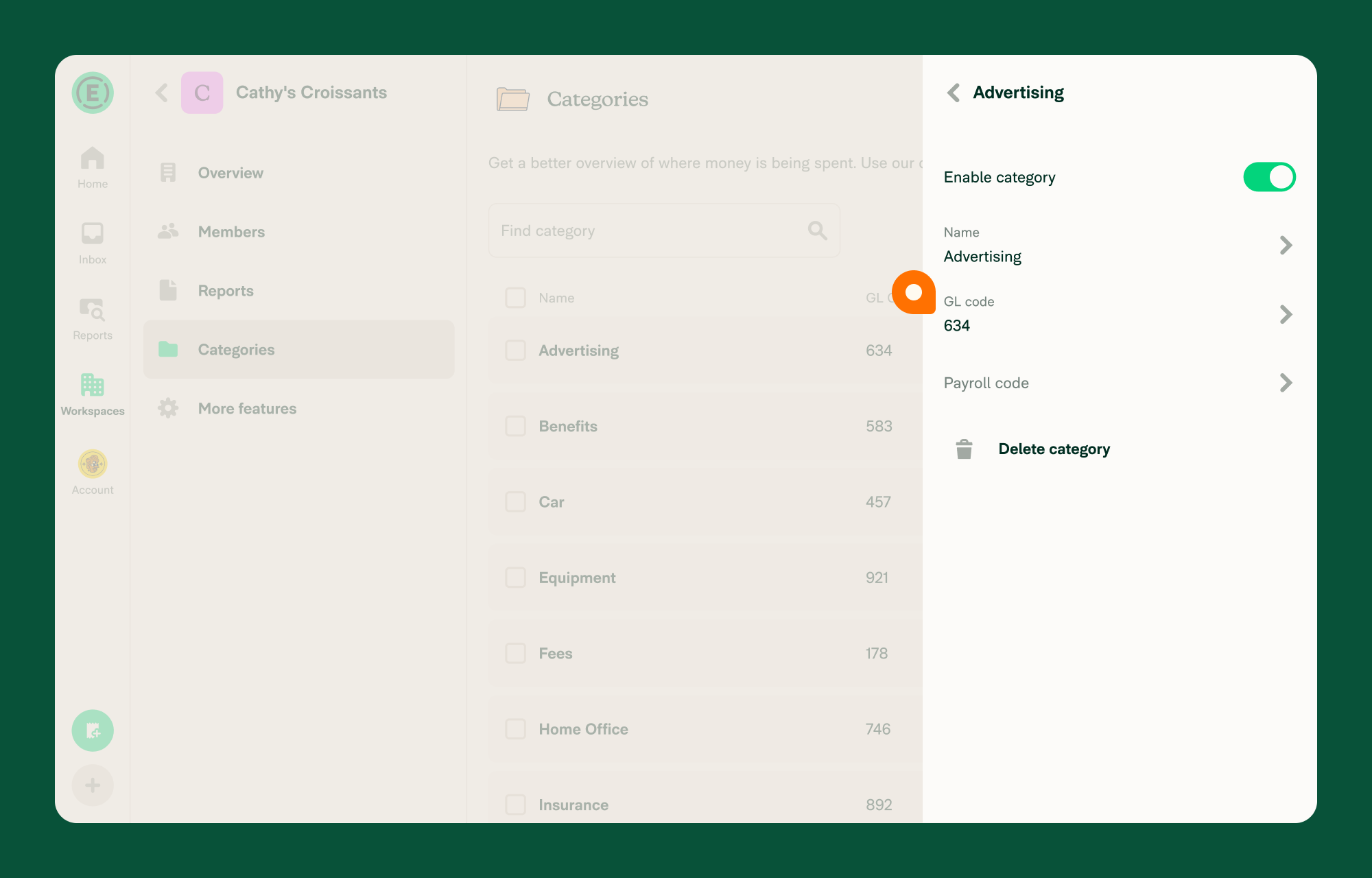
Workspaces on the Control plan can assign optional GL codes and payroll codes to each category. These codes are not visible to members but can be exported for accounting purposes.
To edit these fields:
- In the navigation tabs (on the left on web, and at the bottom on mobile), click Workspaces.
- Click your workspace name.
- Click Categories.
- Click a category to open the detail panel.
- Edit the GL Code or Payroll Code field.
- Click Save.
How to apply categories automatically
Expensify offers two ways to automatically apply categories based on merchant:
Learned Categorization
Expensify learns your category preferences over time and suggests them automatically based on the merchant.
- If you manually change a category, Expensify remembers the update.
- Existing expenses are not updated retroactively.
- These suggestions are based on patterns and may vary by user.
Workspace Merchant Rules
Workspace Admins can configure Workspace Merchant Rules to apply consistent categories based on merchant name across all workspace members.
- Rules apply across all expenses on the workspace.
- Rules take precedence over learned suggestions.
- If a category is already set manually, Expensify won’t override it.
FAQ
Can I edit categories on a submitted expense report?
Yes, until an expense is approved or reimbursed. Approvers can also edit categories—even post-approval—by taking control of the report.
Can I see an audit trail of category changes?
Yes. When a category is manually edited, the change is logged in the related expense chat.
What happens if a category is disabled in my accounting system?
It will be removed from the workspace’s category list. However, it will remain visible on previously submitted or drafted reports where it was already applied.
How can members see GL codes?
GL codes are not visible to members by default. If visibility is required, consider including the GL code in the category name itself.


